Image Compressor & Converter
Shrink photos and screenshots, or switch between PNG, JPG and WebP, in seconds. Everything runs on your device, so your files are never uploaded
Add Images & Choose Settings
Drop your images here
Drag and drop, paste with Ctrl+V, or click to browse
Choose imagesPNG, JPG, WebP, GIF, BMP, AVIF · up to 30 files, 50 MB each
Lower quality = smaller file. 75–85% is a good balance for photos.
JPG has no transparency, so transparent areas are filled with this color
Add images to see the new file sizes and download them here
How to use this tool
- Drop images on the page, paste them with Ctrl+V, or click to browse (up to 30 files, 50 MB each).
- Choose the output format (WebP, JPG, PNG, or keep the original) and, if you need it, a maximum width.
- Set the quality slider; 75–85% is a good balance for photos. If a PNG has transparency and you convert it to JPG, pick the background color.
- Check the size comparison for each file, then download single files, all of them as a ZIP, or copy the result.
Worked example
A 4000 × 3000 px photo (12 megapixels) set to a maximum width of 1920 px becomes 1920 × 1440 px, about 2.76 megapixels, or 23% of the original pixel count. The tool keeps the aspect ratio and rounds the height to a whole pixel. It only shrinks: an image narrower than the limit keeps its size. Fewer pixels plus a lower quality setting is what shrinks the file; the exact saving depends on the picture, so read the real before/after sizes the tool shows instead of expecting a fixed percentage.
Methodology
This tool re-encodes your image with the browser's own Canvas API (canvas.toBlob), using the decoders and encoders your browser already ships for web pages. The savings come from three levers: fewer pixels (the maximum width), a more efficient codec, and a lower quality setting. Example: a 4000 × 3000 phone photo has 12 million pixels; resized to 1600 pixels wide (1600 × 1200) it has 1.92 million, only 16% of the pixels, so the file is usually far smaller before any quality change. The exact saving depends on the picture and on your browser's encoder, so the page reports the real result for each file.
Image compression pitfalls, and how the tool handles each
Most disappointing results come from a few predictable habits. Here is what to watch for.
- Dragging the quality slider on a PNG. PNG is lossless, so the slider is switched off for it. To shrink a PNG, convert to WebP or JPG, or reduce the maximum width.
- Expecting the width limit to enlarge small images. The maximum width only shrinks: an image narrower than the limit keeps its size, and the height follows the aspect ratio, rounded to a whole pixel.
- Feeding in an animated GIF. GIF, BMP and AVIF files become WebP when you keep the original format, and an animated GIF keeps only its first frame. Do not use the tool for animations.
- Forgetting what is dropped. EXIF tags (GPS, camera, timestamps) and embedded color profiles are not carried over, and the stored rotation is baked into the pixels. Keep your originals if you need that data, and never re-compress an already compressed copy.
- Assuming the result is always smaller. A high-quality save of an already optimized file can come out larger. The tool shows the before and after size with a percentage for every file, so compare the numbers and keep the original when the new file is bigger.
Gear for Photo Storage & Transfer
A portable SSD, a microSD card and a USB-C hub for storing and moving photos
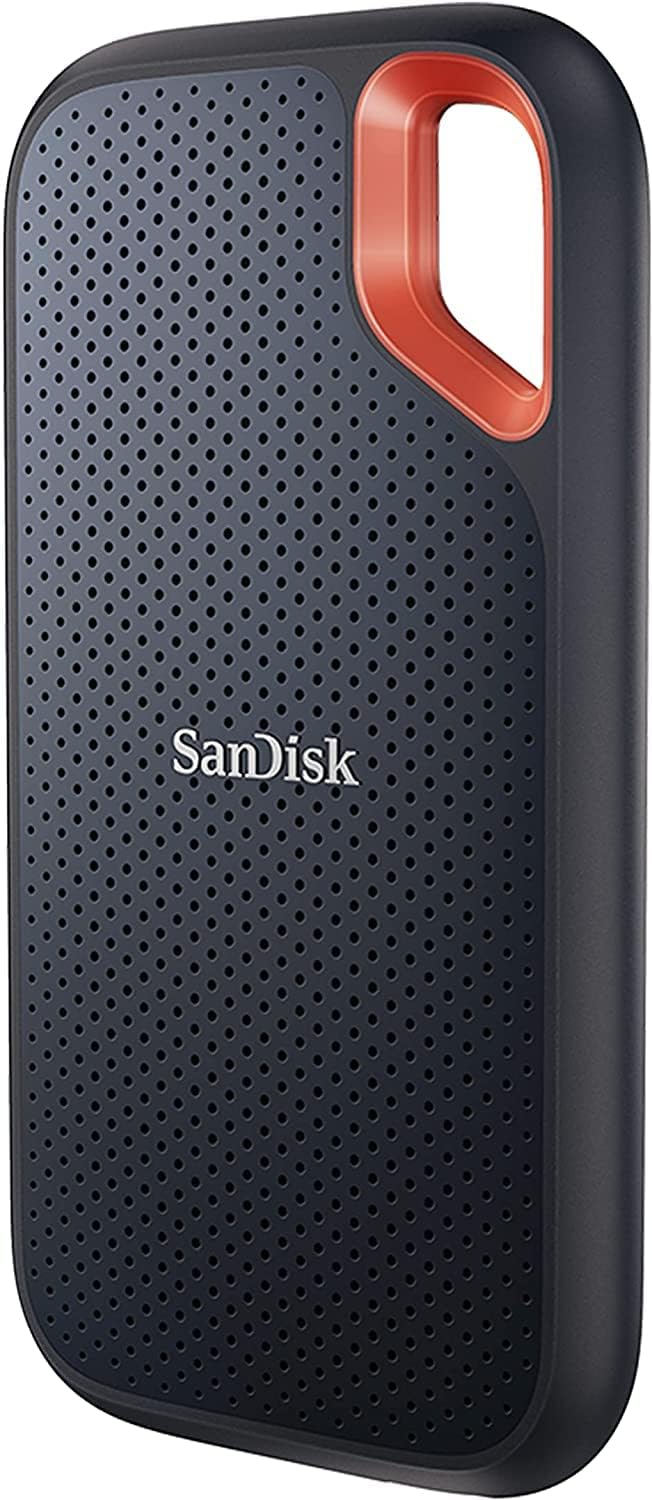
SanDisk 2TB Extreme Portable SSD, up to 1050MB/s, USB-C, IP65 Water and Dust Resistant
Keep your full-size originals on a fast, rugged drive and free up your computer: up to 1050 MB/s over USB-C, with IP65 water and dust resistance.
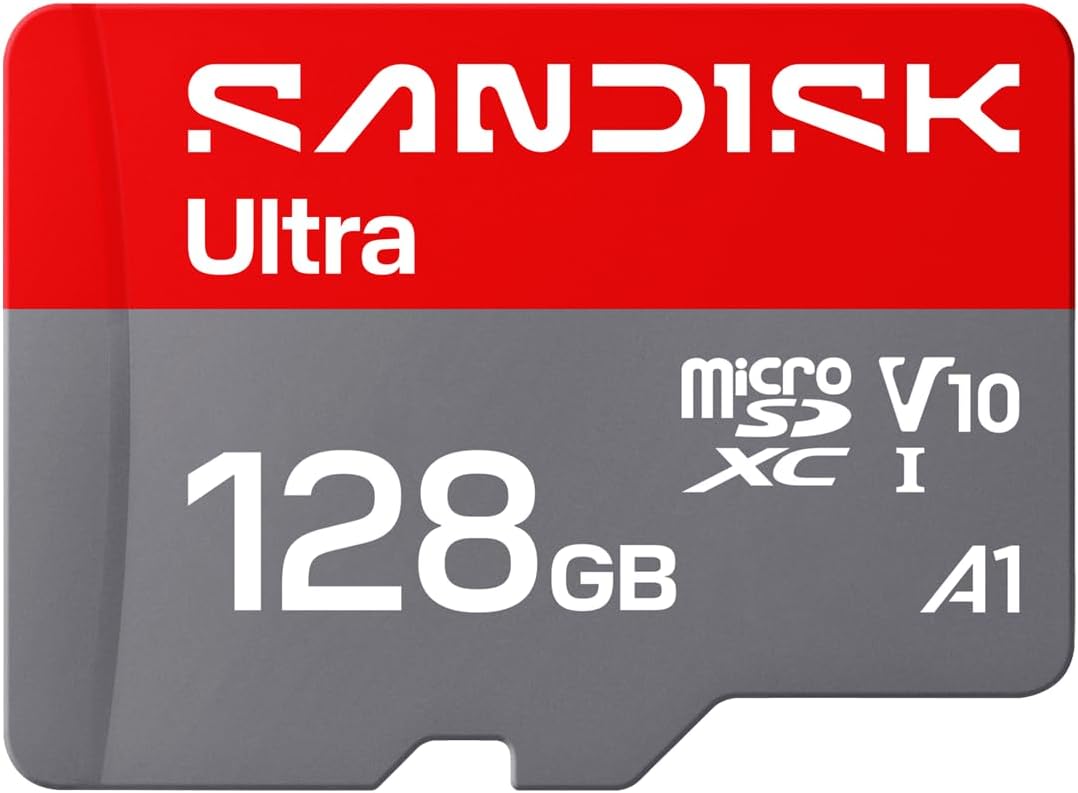
SanDisk 128GB Ultra microSD Card, up to 195MB/s, Full HD (V10, U1, C10, A5)
Read speeds up to 195 MB/s and 128 GB of capacity: a roomy option for phones, action cameras and tablets that fill up with photos.

Anker 5-in-1 USB-C Hub with 4K HDMI, 85W Power Delivery and 3 USB Ports (Black)
Adds 4K HDMI output, 85 W power delivery and three data ports (1 USB-C and 2 USB-A at 5 Gbps) so you can plug in drives and card readers and move photos faster.
As an Amazon Associate we earn from qualifying purchases at no additional cost to you.
Frequently asked questions
Are my images uploaded to a server when I compress them? ▼
No. Decoding, resizing and encoding all happen in your browser with the Canvas API, so the image files never leave your device. You can confirm it in your browser's Network tab: no image data is sent anywhere while you compress.
Why did my PNG barely shrink or even get bigger? ▼
PNG is lossless, so the quality slider cannot reduce it, and re-saving an already optimized PNG can even add a few KB. For a real reduction, convert it to WebP or JPG (photos and screenshots without sharp text shrink the most) or lower the maximum width, since fewer pixels always means a smaller file.
Why does a transparent PNG get a solid background when I convert it to JPG? ▼
JPG cannot store transparency, so every transparent pixel has to be filled with a color. This tool uses white by default and lets you switch to black. If you need to keep the transparency, convert to WebP or stay with PNG.
Does compressing an image remove EXIF and GPS data? ▼
Yes. Because every image is redrawn on a canvas and saved as a new file, metadata such as GPS coordinates, camera model and timestamps is not copied, and neither is an embedded color profile. The rotation stored in the photo is applied to the pixels first, so the image still appears upright.
What settings should I use for an image on a website? ▼
Resize to the largest width the image is actually shown at, and about double that if it must look sharp on high-density screens; a full-width banner rarely needs more than about 2000 pixels. Then use WebP or JPG at 75–85% and compare the result zoomed in. If the new file is larger than the original, the page warns you.
Can I compress the same JPG again and again? ▼
Each lossy save discards more detail and can add visible blocky artifacts, so repeated rounds steadily reduce quality for little extra saving. Keep your original file and always compress from it with the settings you want.